Who is crossing the spread right now? From login to alert in the Order Flow Dynamics Desk
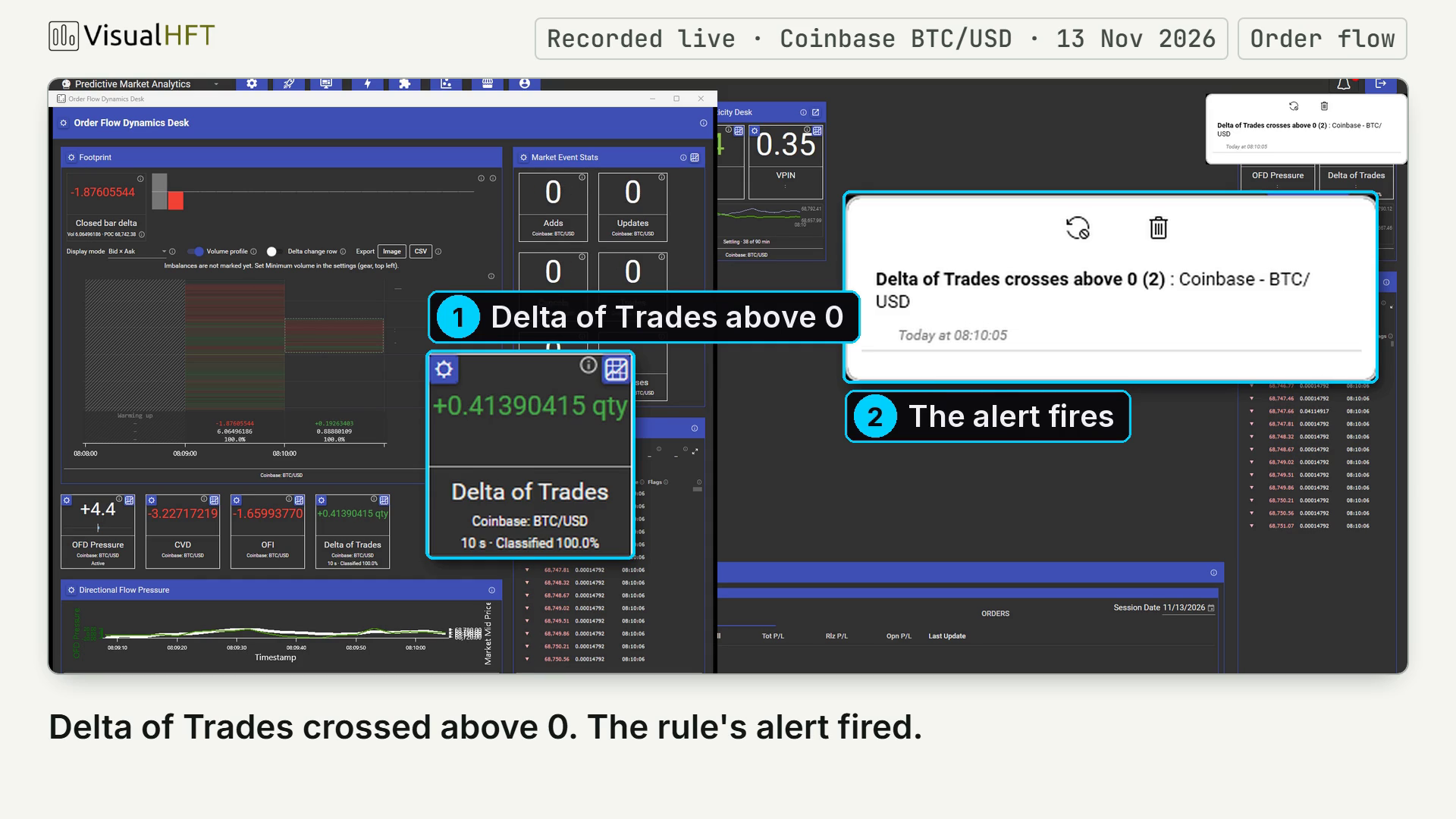
The alert at the top of this page fired on live Coinbase BTC/USD. Delta of Trades, the net taker volume of the last 10 seconds, crossed above 0, and the rule watching it posted its name, the venue and the symbol to Notifications. The “(2)” on the entry means the rule fired a second time and the same entry counted it.
Delta of Trades answers the question in the title: who is crossing the spread right now. Every trade has a taker, the order that crossed the spread to get filled. Weigh the buy takers against the sell takers over a short window and you see which side is pressing the market. The Order Flow Dynamics Desk in VisualHFT Terminal puts that reading on one screen with the prints behind it, and Trigger Management tells you when it flips.
This post is the path a new user clicks, from the Login window to that alert. Every step below is a real run of VisualHFT Terminal on live Coinbase BTC/USD, recorded on 13 November. Two screens a new account may see are not in the recording: the licence agreement on an app’s first launch, and the plan choice.
1. Log in
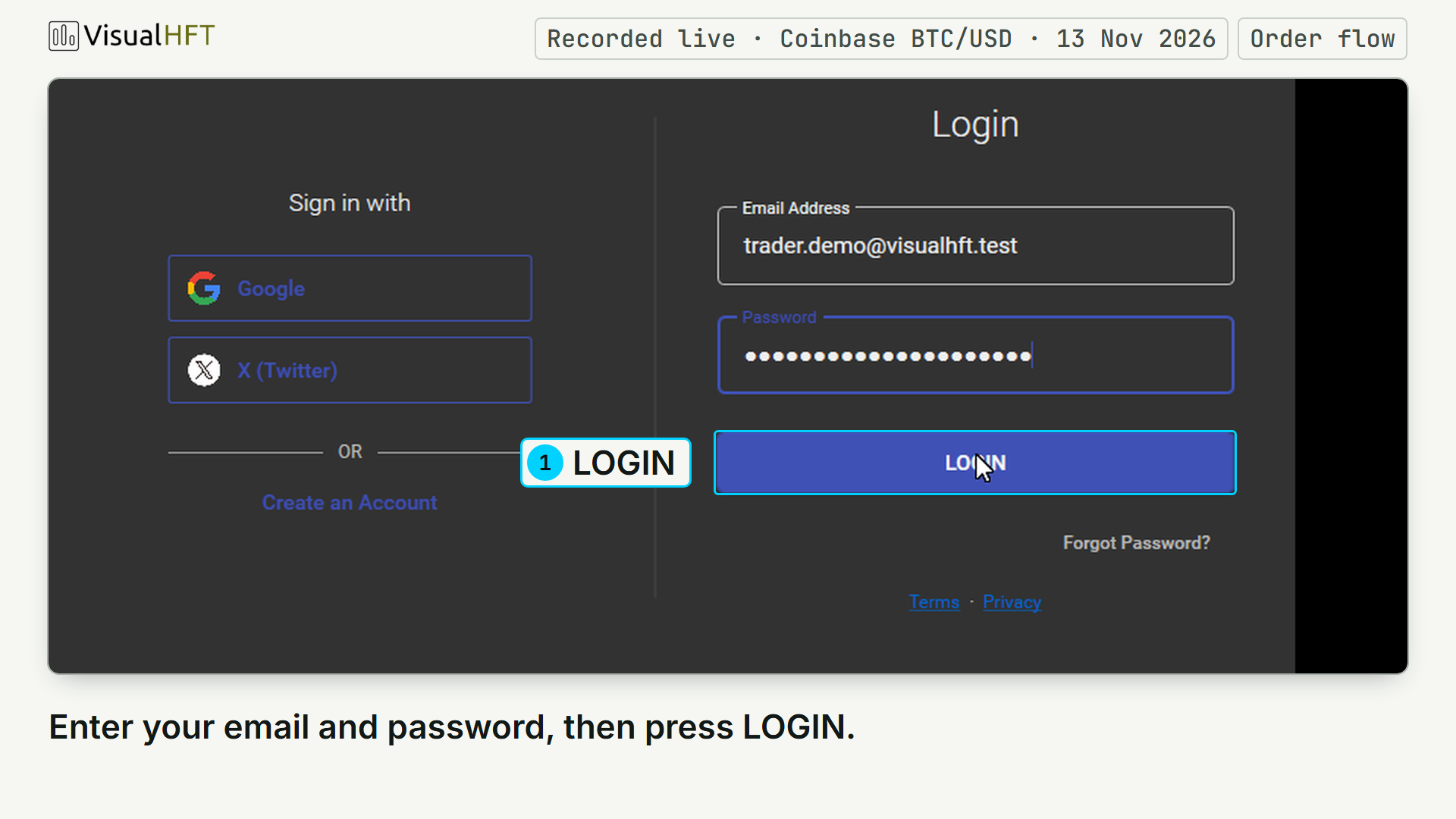
Open VisualHFT Terminal. On the Login window, type your email address and password, then press LOGIN.
After the splash screen, on a first run with no exchange connected yet, the Quick Start wizard opens by itself, before the dashboard.
2. Connect Coinbase BTC/USD in Quick Start
On the welcome screen, press Connect live market data. Pick Coinbase as the exchange. In Market, pick BTC-USD; the wizard notes that tiles show it as BTC/USD. Press Check connection.
The wizard reads Connecting, then Receiving data, with a tick beside Order book and Trades. Press Continue. The next screen offers more exchanges and is optional: press Continue again.
The last screen, Ready to launch, lists the exchange, the market and the dashboard, Predictive Market Analytics. Below that, it says the studies restart on this market. Press Launch dashboard.
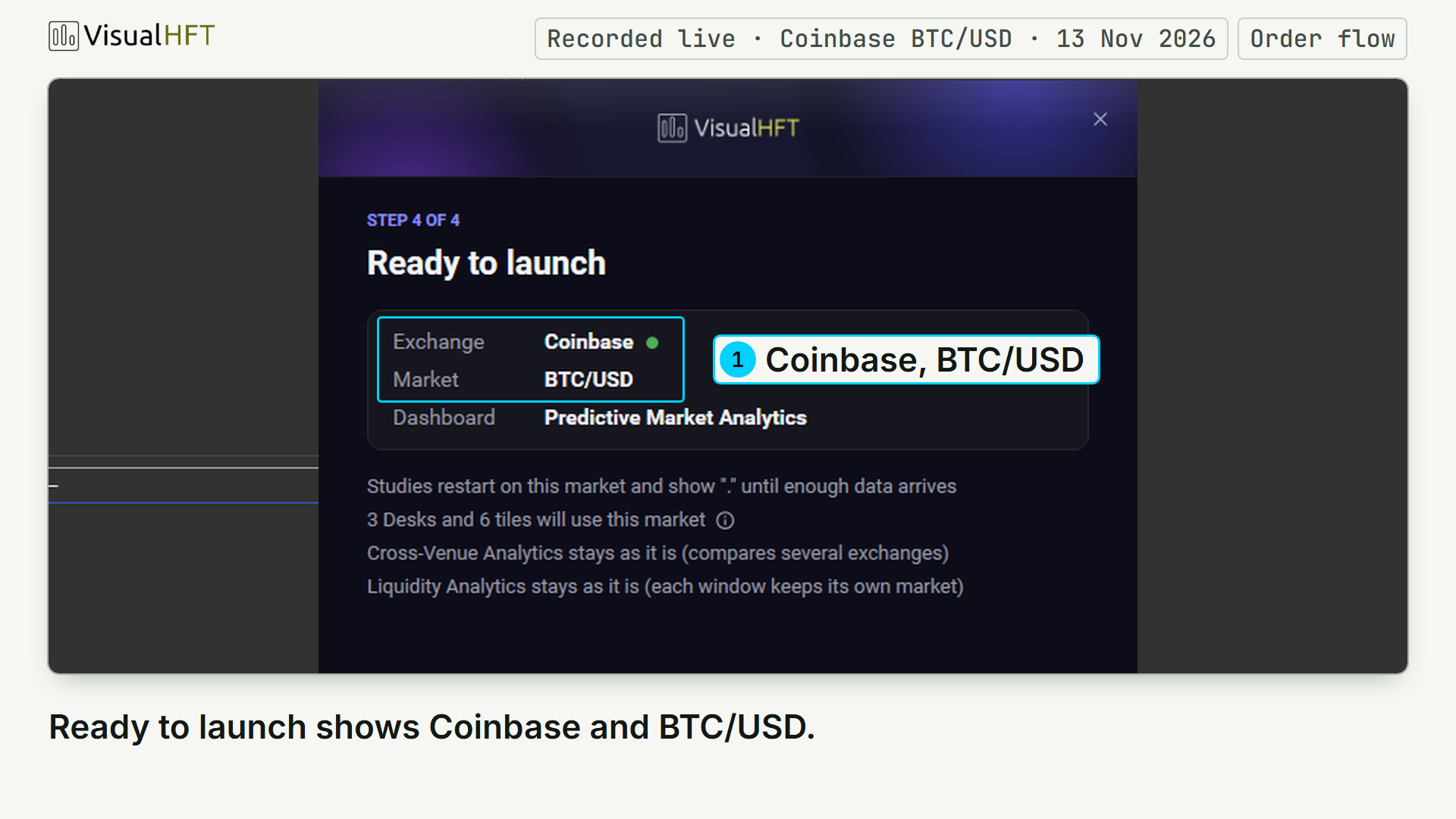
The main window switches to that dashboard, with its studies pointed at Coinbase BTC/USD. A tour opens over it. Follow it with Next, or press Skip tour.
3. Open the Desk window from its card
On the dashboard, the Order Flow Dynamics Desk sits as a card, with its OFD Pressure tile (Directional Flow Pressure in the Desk window), a Delta of Trades tile and a chart. At the card’s top right is a small open-in-new icon, a square with an arrow. Press it.
The Desk window opens already aimed at your market: the tiles name it, Coinbase: BTC/USD. Delta of Trades, Cumulative Volume Delta (CVD) and the Time & Sales pane fill with live values.
OFD Pressure, the Desk’s headline, builds its reference over its first 30 minutes on an instrument. We let it build before recording, so the videos show it live.
4. Read Delta of Trades and CVD together
Delta of Trades is net taker volume: taker buys minus taker sells over a short trailing window. The tile’s footer names the window, 10 s by default. Above 0, buy takers executed more volume in that window. Below 0, sell takers did.
CVD is the running total of the same quantity since it started. It starts at 0 when the study starts and resets daily, at 00:00 UTC by default. Its level says which side has crossed more since then. Its slope says which side is adding now.
To see either one over time, press Open Chart, the chart icon at the tile’s top right. The Delta of Trades chart draws the window as bars, with the price as a white line on its right axis. The CVD chart puts CVD and the price on one time axis.
Two shapes are worth a look. The first is a sign flip: on the Delta of Trades chart, red bars give way to green ones, and the last 10 seconds now lean the other way. The second is a CVD step: the line jumps when a burst of taker volume lands on one side. The clip below shows both. The bars turn from red to green, and the CVD line steps up.
Read the flip against CVD. The window rolls, so a flip can come from new prints or from older prints leaving the window. Between resets, CVD moves only on new prints. A flip with a CVD step the same way is new flow on the new side. A flip while CVD sits flat is the window rolling. The Time & Sales pane beside the tiles shows the prints themselves.
CVD carries a proven edge. In our research on held-out Nasdaq trades, the taker side it totals called the direction of the next mid move. The CVD post has the result and how to read CVD against price. For the book side of the same question, read the Order Flow Imbalance post.
5. Build the rule in Trigger Management
In the main window’s toolbar, press the lightning bolt, Trigger Management. The Trigger Rules window opens. Press Add New Rule.
In the editor, type a Rule Name, such as “Delta of Trades crosses above 0”. On the Conditions tab, press the plus button to add a condition row. In Plugin, pick Delta of Trades; the list shows Coinbase: BTC/USD under its name. In Condition, pick CrossesAbove. Set Value to 0.
On the Action tab, tick Notify in app, then press Save, then OK. The rule appears in the Trigger Rules window with the status Running.
One rule watches one direction
“Crosses above 0” fires when the reading moves from below 0 to 0 or above. “Crosses below 0” fires when it moves from above 0 to 0 or below. A rule catches flips in its own direction.
To catch both flips, save two rules on the same metric, one with CrossesAbove 0 and one with CrossesBelow 0. Give each a name that says its direction. The name is the alert’s title.
6. Watch it fire
Keep the Desk window beside the main window. When Delta of Trades crosses 0 in the rule’s direction, the rule fires. In the recording, the tile turns from red below 0 to green above it, and a red badge appears on the bell at the top right of the main window.
Press the bell. The Notifications list shows the alert: the rule’s name as its title, then the venue and symbol, Coinbase - BTC/USD, and the time it fired.
A second fire of the same rule does not add a row. It updates the same entry: the title gains “(2)” and the time moves to the latest fire.
That is the alert from the top of this post, and every step to it was a screen in the app.
Send the alert to your own system
The bell serves you at the screen. A webhook sends each alert to an endpoint you run.
On the rule editor’s Action tab, tick Webhook URL and press Configure. Fill the dialog from the top:
- Trigger Rate Limit. Type the shortest gap you want between two sends, above 0, and pick Seconds, Minutes, Hours or Days. After a send, crossings inside that gap send nothing, so a fast run of flips cannot flood your endpoint.
- URL. Your endpoint. The method is POST.
- Template. The body of each POST. A new template starts with metric, value and timestamp. The placeholders you can use are
{{rulename}},{{metric}},{{condition}},{{threshold}},{{value}}and{{timestamp}}. Name the rule so it tells your system what fired;{{rulename}}sends that name.
Then press Save in the dialog, then Save in the rule editor. In the clip, a small listener stands in for your endpoint and prints each POST it receives: the time, the path, a 200 and the rule’s name.
The whole run, from login to alert
Here is the full journey in one recording, from the Login window to the alert, on live Coinbase BTC/USD. Sped-up stretches carry a Fast-forward chip.
Where this leaves you
You now have the path from the Login window to a Desk that shows who is crossing the spread, and to an alert when net taker flow flips. The Desk guide goes tile by tile, then shows how to read the tiles together.
Related reading
CVD Inside the Order Flow Dynamics Desk: Who Led the Session, and When Price Stopped Agreeing
Cumulative Volume Delta adds up who took liquidity since the session started. Its sign says who led, its slope says who leads now, and its divergence from price shows the tape and the price disagreeing. Here is how to read all three on the Order Flow Dynamics Desk.
OFI Inside the Order Flow Dynamics Desk: See the Book Lean Before the Quote Ticks
Order Flow Imbalance is one tile on the Order Flow Dynamics Desk, the surface that answers one question: who is pressing, how hard? OFI shows where pressure is building at the top of book, every 100 ms. Here is how to read its lean, persistence, shifts and quiet, and what to read it with.
From Signal to Trade, Part 2: Reading Book Churn and Sweeps on the Screen
Part 2 of the series: two order-flow tiles a desk reads for context. OTR flags a book that churns while nothing trades; TTO makes many sweeps visible at a glance.