Getting started with the open-source VisualHFT application
Build the public application, connect market data, inspect its built-in studies, and follow the current extension templates.
What VisualHFT Shows You — The Built-In Microstructure Studies
After a connector begins publishing data, the Dashboard can show the available bid and ask levels for that feed. Studies do not start merely because the Dashboard is open: configure and start each study for the same provider and symbol, then allow any required window or volume buckets to fill.
Here is what each study is measuring and why it matters.
VPIN — Volume-Synchronized Probability of Informed Trading
The 2012 paper defines a volume-time toxicity procedure that requires trades to be classified as buys or sells. The current public VisualHFT implementation groups classified trade volume into fixed-size buckets and reports the rolling mean of each completed bucket’s normalized absolute buy/sell-volume imbalance.
There is an important implementation distinction: VisualHFT classifies a trade against the latest order-book mid-price, falling back to the provider’s IsBuy value when no mid-price is available. It does not implement the paper’s bulk-volume-classification procedure verbatim. Treat the output as VisualHFT’s inspectable VPIN implementation—not as proof of informed trading or a crash prediction.
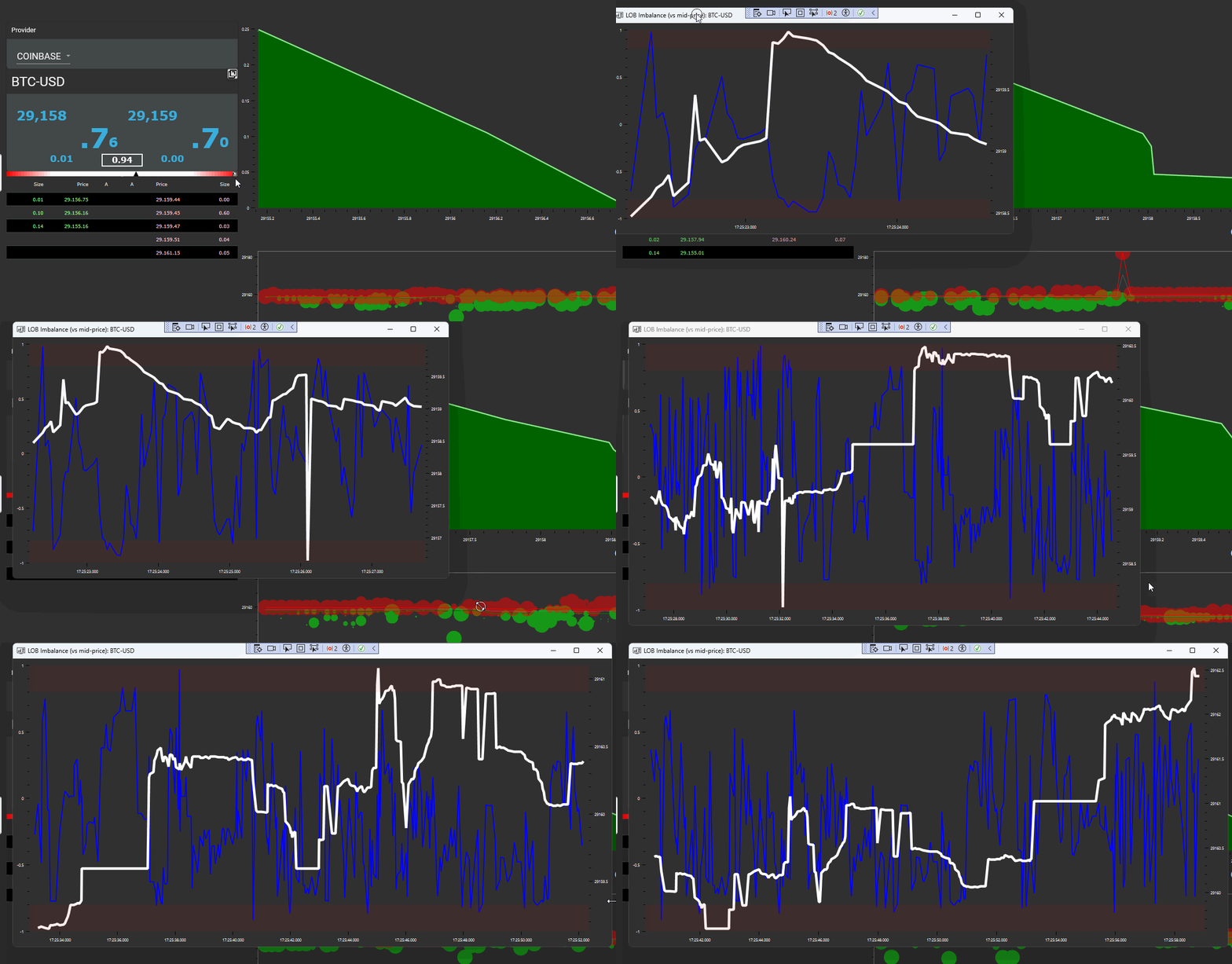
LOB Imbalance
Gould and Bonart’s queue-imbalance study concerns the best bid and ask and the next mid-price move. VisualHFT calculates a different, configurable-depth measure:
(total bid size - total ask size) / (total bid size + total ask size)The totals use the visible levels up to the order book’s configured maximum depth. Positive values mean more displayed bid size in that window; negative values mean more displayed ask size. This is descriptive book state, not a promise about the next price move.
Market Resilience
Market resilience describes how the book responds after a disturbance. The current VisualHFT study detects spread and depth shocks, tracks their recovery durations, and combines available recovery and shock-magnitude components into a normalized score. Its thresholds, history, weights, and timeout are implementation settings; the score is not a direct reproduction of OFR Working Paper 14-09 or a universal definition of resilience.
Use it to compare the observed recovery process under a controlled configuration. Do not compare scores across symbols or venues without checking depth, feed fidelity, trade classification, and study settings.
OTT Ratio — Order-to-Trade Ratio
EU 2017/566 defines venue calculations in both volume and message-count terms for each member or participant. Public market data generally does not identify the member responsible for each message, so VisualHFT cannot reproduce that venue-level surveillance calculation.
VisualHFT’s OTR study instead compares observed order-book activity with public trades for the selected provider and symbol, in one of two forms chosen in the plugin settings. The message-count form, which is the default, divides book changes at tracked price levels by trades in the aggregation window; a modification counts twice, and a trade-count floor avoids division by zero. The volume form divides posted size by executed size over the session: max(Added + Removed - Traded, 0) / Traded, minus one, with no value shown until a public trade has been seen. Only levels inside the configured depth are counted, and size can enter and leave that depth without ever being counted as withdrawn, so the volume form’s numerator is an approximation. How much a given reading is affected depends on how heavily the book churns at its depth limit, and that has not been measured. A high value can have several causes and is not, by itself, evidence of spoofing or layering.
Time & Sales
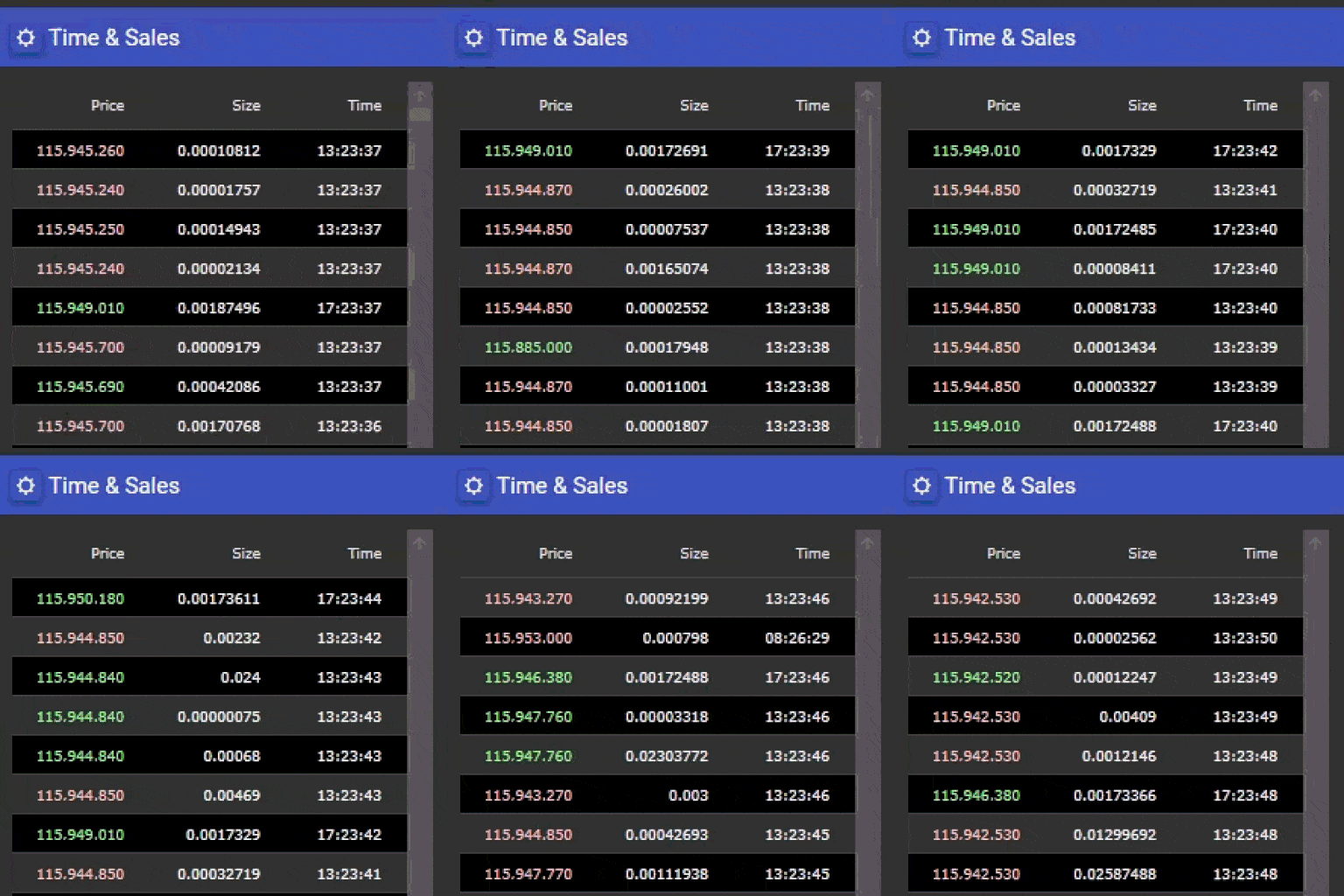
VisualHFT also includes a Time & Sales panel for trade messages published by the selected connector. A row can include timestamp, price, size, and side information supplied or inferred by that data path. Coverage and classification depend on the venue feed and connector; this panel must not be treated as proof that every venue execution was received.
The current public host references VPIN, LOB Imbalance, Market Resilience, and OTT Ratio study projects. Their implementations and settings are available in the repository.
Installation and First Data Stream
This section follows the current public repository. Setup time depends on whether the required SDK, Visual Studio workload, and exchange endpoints are already available.
Prerequisites
VisualHFT targets .NET 10 and runs as a WPF desktop application on Windows. You need:
- .NET 10 SDK — download from dotnet.microsoft.com. Verify installation:
dotnet --version
# Should return 10.0.x-
Visual Studio Community (free, a version with .NET 10 support) — download from visualstudio.microsoft.com. During installation, select the .NET desktop development workload. This pulls in WPF support and the build toolchain.
-
SQL Server is not required for this guide. The repository contains SQL scripts for optional workflows, but the source build and public market-data dashboard do not require a database.
Step 1: Clone and Open
git clone https://github.com/visualHFT/oxyplot.git
git clone https://github.com/visualHFT/VisualHFT.git
cd VisualHFT
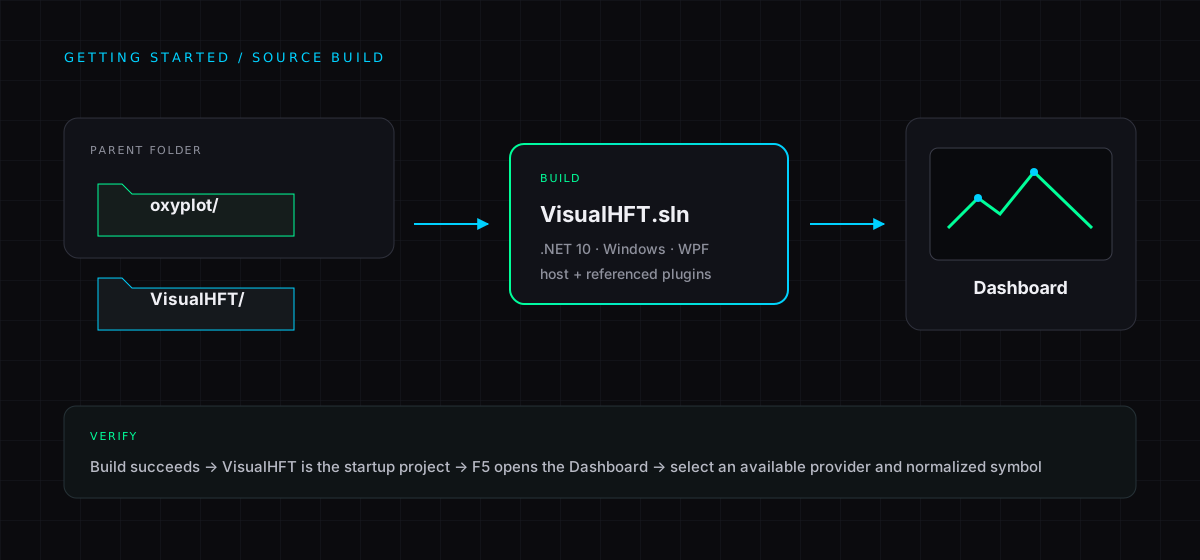
Keep oxyplot and VisualHFT as sibling directories; the application references the VisualHFT OxyPlot fork as source projects. Open VisualHFT.sln in Visual Studio. The solution contains the core application, the commons libraries (VisualHFT.Commons, VisualHFT.Commons.WPF), and the connector and study plugin projects.
Step 2: Build
Press Ctrl+Shift+B or Build → Build Solution. NuGet restore runs automatically for package dependencies. OxyPlot is not restored from NuGet: the solution builds against the sibling source checkout cloned in Step 1.
If the build fails, the most common cause is a missing .NET 10 SDK or the wrong Visual Studio workload. Verify with dotnet --list-sdks and confirm a 10.0.x entry exists.
Step 3: Run and Configure Your Exchange
Press F5. The Dashboard opens first. Choose a provider and symbol from the order-book panel. The current public repository documents these eight connector options:
| Connector | Exchange | API Key Required? |
|---|---|---|
| Binance | Binance Spot | No (public market data) |
| Bitfinex | Bitfinex | No (public market data) |
| BitStamp | Bitstamp | No (public market data) |
| Coinbase | Coinbase Advanced | No (public market data) |
| Gemini | Gemini | No (public market data) |
| Kraken | Kraken Spot | No (public market data) |
| KuCoin | KuCoin | No (public market data) |
| Generic WebSocket | Any venue | Depends on venue |
For public order book data, no API key is required. Select a connector, then use its settings screen to choose the symbols and feed options available for that venue.
Settings vary by connector. The public connector template exposes Symbols, DepthLevels, and an AggregationLevel selection; use the settings displayed by the connector you chose.
Step 4: Select a Symbol and Go Live
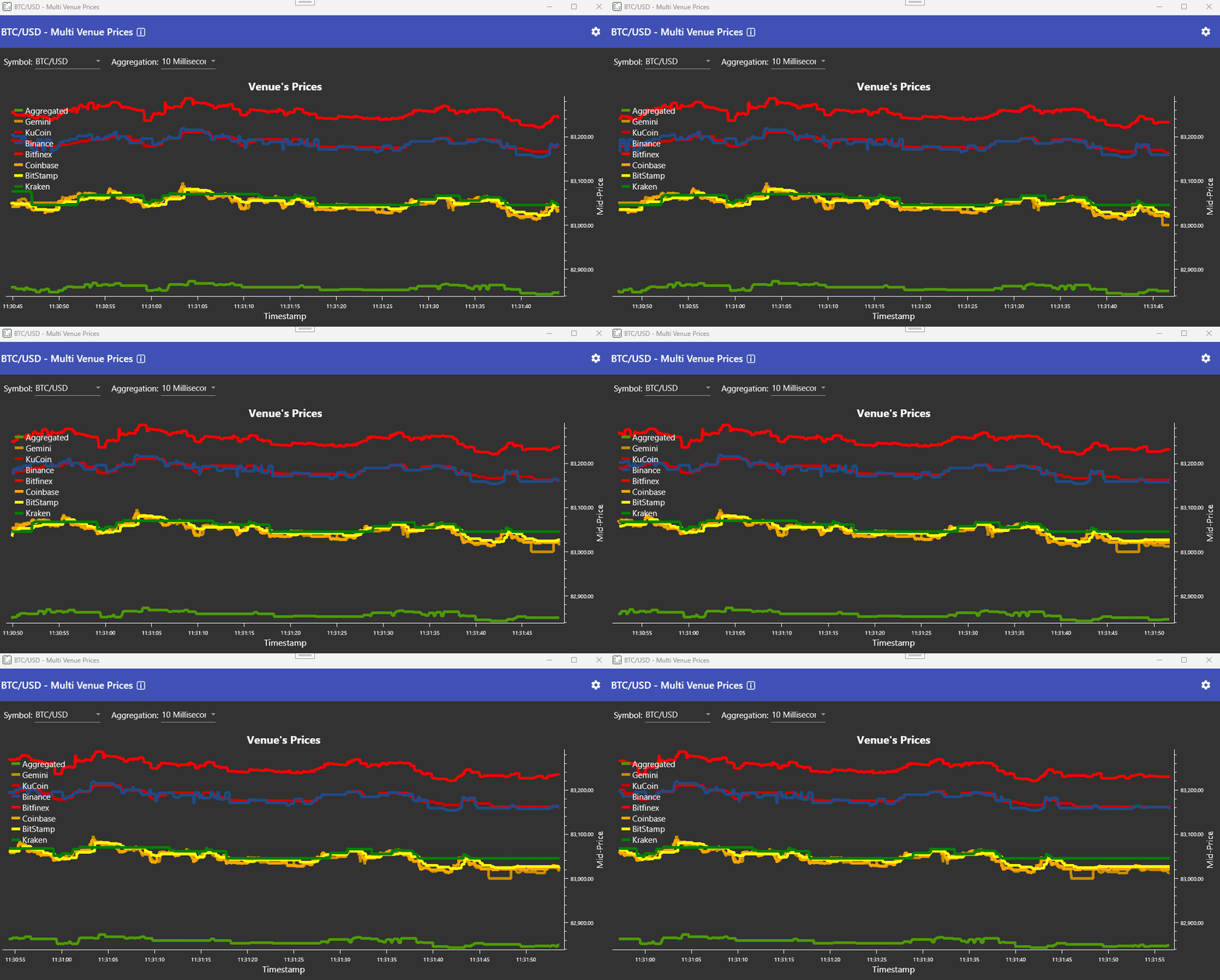
Enter a symbol in normalized format — for example, BTC/USD. The normalization layer maps exchange-specific ticker variations to VisualHFT’s common symbol form.
After the connector reports a connected state and begins publishing data, the Dashboard can display:
- 10+ depth levels per side updating in real time
- the live order book and trade stream supported by that provider
- LOB imbalance for the displayed book depth
- any study that you explicitly configure and start for the selected provider and symbol
Troubleshooting
Build fails with “target framework not found” — You need the .NET 10 SDK, not .NET 8.0 or 9.0. The project targets net10.0-windows10.0.22621.0. Run dotnet --list-sdks to verify.
WebSocket connection drops or no data — Check your firewall. The connectors use outbound WebSocket connections (WSS on port 443). Some corporate networks block WebSocket traffic.
Studies show “N/A” or zero values — Confirm that the selected provider is publishing the inputs required by the study. Windowed studies such as VPIN also need enough trade volume to fill their configured buckets; there is no fixed warm-up time across symbols.
Extend VisualHFT with the Study SDK
Once you have live data streaming, the next step is building your own microstructure analytics. VisualHFT provides a Study SDK with a complete template at SDK-StudyTemplate/ in the repository root.
The Architecture
The current Study SDK template inherits from BasePluginStudy and follows this data flow:
Market data callback → pooled OrderBookSnapshot → HelperCustomQueue → QUEUE_onRead() → AddCalculation() → dashboardThe template moves non-trivial calculation work away from the feed callback. It copies the mutable pooled OrderBook into a disposable OrderBookSnapshot, enqueues that snapshot, and performs the calculation in QUEUE_onRead(). This is the template’s safe default, not a rule that every existing study uses a queue: short calculations may run inline when their cost is known and bounded.
Building Your First Custom Study
Step 1: Copy the template. Duplicate the SDK-StudyTemplate/ folder. Rename it to match your study — for example, Studies.SpreadTracker.
Step 2: Implement your calculation. The main template surfaces are:
TemplateStudyPlugin.cs— plugin lifecycle, subscriptions, queue handler, publishing, and alertsPlugInSettings.cs— Configuration parameters (thresholds, window sizes, etc.)PluginSettingsViewModel.cs— MVVM view model for the settings UIPluginSettingsView.xaml— WPF interface for configuring your study at runtime
The template subscribes to order-book events, creates a pooled snapshot, and transfers ownership to the queue handler. OrderBookSnapshot is a disposable snapshot class—not a zero-copy struct—and must be disposed after processing so its pooled arrays are returned.
private void QUEUE_onRead(OrderBookSnapshot snapshot)
{
    try
    {
        if (snapshot.Bids.Length == 0 || snapshot.Asks.Length == 0)
            return;

        double bestBid = snapshot.Bids[0].Price;
        double bestAsk = snapshot.Asks[0].Price;
        double mid = (bestBid + bestAsk) / 2.0;
        if (mid <= 0)
            return;

        double spreadBps = ((bestAsk - bestBid) / mid) * 10_000;
        AddCalculation(new BaseStudyModel
        {
            Value = (decimal)spreadBps,
            Timestamp = HelperTimeProvider.Now,
            MarketMidPrice = (decimal)mid
        });
    }
    finally
    {
        snapshot.Dispose();
    }
}
Step 3: Configure alerts. Store the threshold in PlugInSettings. In your calculation, test the condition and invoke OnAlertTriggered with the value; the template supplies the event plumbing, but it does not infer when an alert should fire.
Step 4: Build and load. Add a ProjectReference for the new study to VisualHFT.csproj, then rebuild. The output DLL must land beside VisualHFT.exe; there is no separate plugins/ directory. VisualHFT scans its application directory and adds the discovered study to the study list.
For the complete sequence and project reference, use the extension guide.
Reference Implementations Worth Reading
Before writing your first custom study, read the built-in implementations in the VisualHFT.Plugins/ directory:
- VPIN — Volume bucket classification, rolling window aggregation
- LOBImbalance — Multi-level depth ratio calculation
- MarketResilience — Recovery speed measurement after aggressive orders
- OTT_Ratio — Order count vs. trade count tracking
Each one is a working code reference. Review its settings and tests before treating an output as comparable across symbols or venues.
Connect Another Venue with the Market Connector SDK
For trading technology teams that need to connect a venue not included in the eight default connectors, VisualHFT provides a Market Connector SDK at SDK-MarketConnectorTemplate/ in the repository root.
What the Template Gives You
The template supplies plugin lifecycle hooks, validated settings UI, reconnect wiring through SetReconnectionAction(...), and VisualHFT data-bus integration. You still choose and manage the venue client, subscribe and unsubscribe feeds, parse the exchange’s payloads, maintain book state, and publish normalized models. JSON parsing is deliberately not included because each venue has a different message shape.
The template includes these core surfaces:
TemplateExchangePlugin.cs— Your main connector class inheriting fromBasePluginDataRetrieverPlugInSettings.csand its ViewModel/XAML — persisted, validated connector settingsSampleMessages/— reference payloads for the normalized event concepts
Your connector inherits from BasePluginDataRetriever. The current template makes the startup responsibilities explicit:
public override async Task StartAsync()
{
    await base.StartAsync();
    RaiseOnDataReceived(GetProviderModel(eSESSIONSTATUS.CONNECTING));

    try
    {
        await InternalStartAsync();
    }
    catch (Exception ex)
    {
        LogException(ex);
        await HandleConnectionLost(ex.Message, ex);
    }
}

private async Task InternalStartAsync()
{
    foreach (var rawSymbol in GetAllNonNormalizedSymbols())
    {
        var normalized = GetNormalizedSymbol(rawSymbol);
        // Subscribe to book and trade updates for rawSymbol,
        // then publish VisualHFT OrderBook and Trade models.
    }

    RaiseOnDataReceived(GetProviderModel(eSESSIONSTATUS.CONNECTED));
    Status = ePluginStatus.STARTED;
    await Task.CompletedTask;
}
The base class and template provide reconnect and symbol-normalization hooks, while the settings model exposes connector configuration through the UI. Consult the template and a working connector before relying on a specific retry policy or settings field because those details evolve with the connector implementation.
Sample Message Fixtures
SDK-MarketConnectorTemplate/SampleMessages/ contains conceptual fixtures for order-book snapshots, incremental updates, trades, errors, and subscriptions. They illustrate the information a connector normally handles; they are not a built-in venue JSON parser. Your connector must parse the venue’s actual protocol, maintain sequencing and book state as required by that venue, and publish the corresponding VisualHFT model objects.
Reference Implementations
Before writing a connector for a new venue, compare the current Bitfinex, Binance, and Kraken implementations. They use different client and parsing approaches, so choose the one whose transport and book-update model most closely matches your venue.
Use the connector whose transport and book-update model most closely matches your venue: Bitfinex is the smaller REST/WebSocket example, Binance uses a typed client SDK, and Kraken demonstrates direct WebSocket parsing. Add the new connector as a ProjectReference in VisualHFT.csproj, rebuild, and verify that its DLL lands beside VisualHFT.exe; there is no separate plugins/ directory.
The template can be adapted to compatible WebSocket or REST venues. The effort depends on authentication, subscription semantics, snapshot/delta sequencing, rate limits, and the venue’s failure modes.
VisualHFT Quick-Start Checklist
Environment Setup:
- Install .NET 10 SDK — verify with
dotnet --version(must return10.0.x) - Install Visual Studio Community (a version with .NET 10 support) with the .NET desktop development workload
- Clone
https://github.com/visualHFT/oxyplot.gitbeside the VisualHFT checkout - Clone:
git clone https://github.com/visualHFT/VisualHFT.git - Open
VisualHFT.sln→ Build Solution (Ctrl+Shift+B) - If build fails: run
dotnet --list-sdksand confirm10.0.xis present
First Run:
- Press
F5→ select an available public-data connector - Enter symbol in normalized format:
BTC/USD - Verify study panels activate: VPIN, LOB Imbalance, Market Resilience, OTT Ratio
- Wait for the study’s configured window or buckets to fill before evaluating its output
Custom Study:
- Copy
SDK-StudyTemplate/folder → rename to your study name - Inherit from
BasePluginStudy→ subscribe toHelperOrderBook.Instance, implement queue handler withAddCalculation() - Add the project to
VisualHFT.csprojas aProjectReference→ rebuild → verify its DLL is besideVisualHFT.exe - Reference: read the VPIN and LOBImbalance implementations first
Custom Connector:
- Copy
SDK-MarketConnectorTemplate/folder → rename to your venue - Inherit from
BasePluginDataRetriever→ parse exchange data and callRaiseOnDataReceived() - Parse the venue protocol and publish normalized VisualHFT model objects; use
SampleMessages/as conceptual fixtures - Add the project to
VisualHFT.csprojas aProjectReference→ rebuild → verify its DLL is besideVisualHFT.exe - Reference: read the Binance connector implementation first
New to VisualHFT? Get Started. New accounts get a 7-day trial.